Can a USB-C Monitor Replace Your Laptop Dock?
Video, charging, and accessories can share one cable, but only when every part supports the right features.
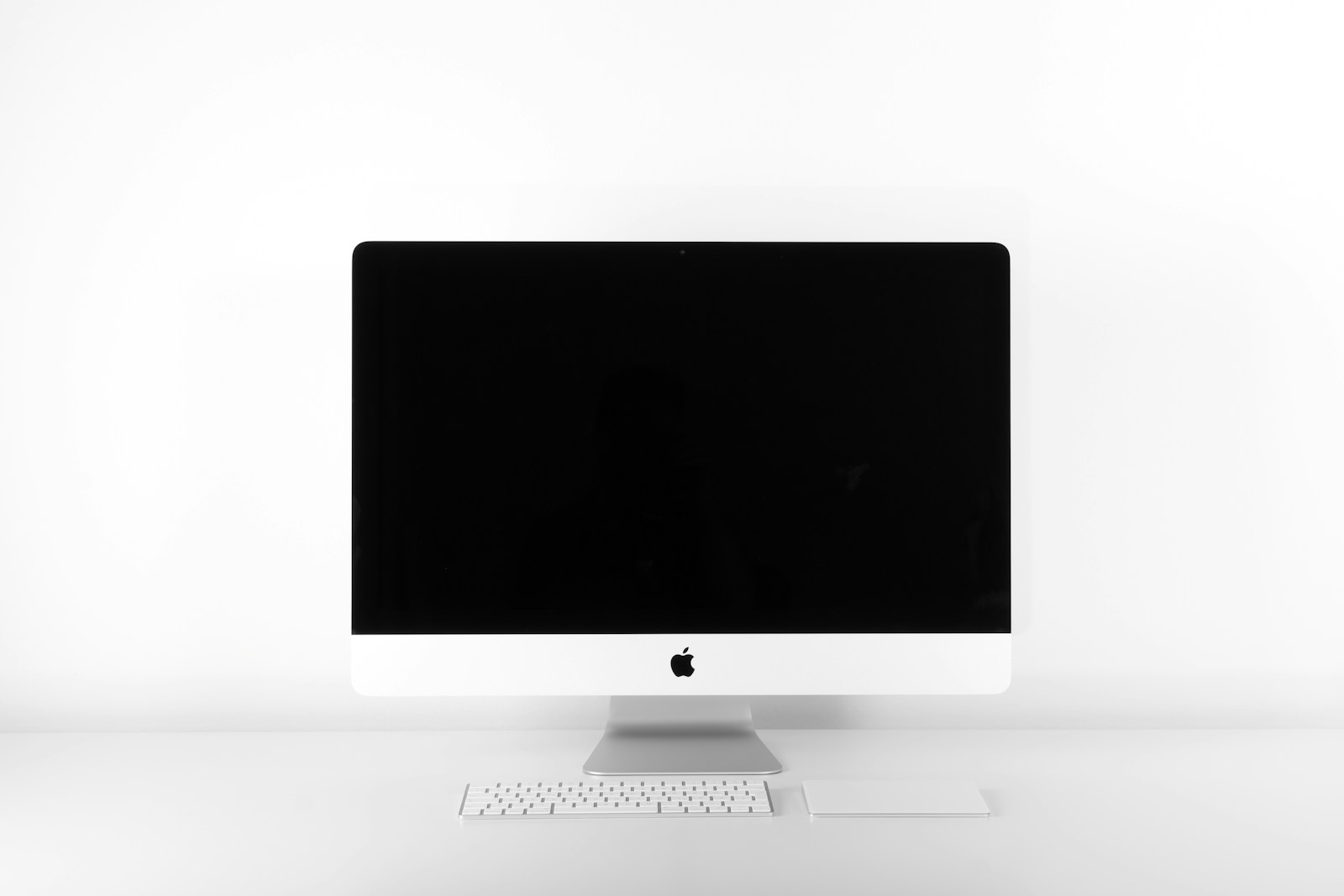
A monitor that connects to a laptop with one cable is appealing for an everyday desk. The same connection can carry the picture, charge the computer, and connect a keyboard or mouse through USB sockets on the monitor. That arrangement can remove a separate hub from a simple setup.
The important word is can. A USB-C socket on a display might handle video and power, data only, or a different role. Read the specification for the designated upstream port and the included cable. This guide explains how to evaluate the connection without assuming that all USB-C monitors work alike.
Before you choose
- Confirm that the monitor upstream USB-C port supports video input, data, and the charging output you need.
- Check laptop video support and compare the monitor power delivery with the laptop charging guidance.
- Treat a second display, high-speed storage, and KVM switching as separate features to verify.
Check the direction of every connection
Monitor listings often mix input and downstream accessory specifications. The upstream port connects the display to the computer. Downstream USB ports connect accessories such as a keyboard, mouse receiver, or webcam. A downstream USB-C socket does not automatically accept a video signal from the laptop, even though the plug fits.
Find the connection diagram in the manual. Identify which port accepts DisplayPort over USB-C or another supported video protocol and whether it also carries USB data. If you connect video over HDMI instead, you may need a separate USB upstream cable for the monitor hub. That is normal, but it changes the promised one-cable arrangement.
Match charging to the actual laptop
The monitor power-delivery output should be evaluated against the computer requirements, not the wattage used by the screen itself. Check whether the stated power is available in the operating mode you intend to use. Some displays offer different standby or power-saving settings that affect charging and USB behavior.
A laptop with a demanding graphics workload may use more power than the monitor can provide. It may still connect and display correctly while charging slowly or losing battery capacity during use. For such a machine, a separate adapter can be more appropriate than insisting that the display perform every job. Follow the computer manufacturer recommendations.
Understand the video and data tradeoff
Depending on the connection implementation, video and USB data can share available resources. Some monitors include a setting that prioritizes high-resolution video or faster USB transfer. Read the manual if an attached SSD is slower than expected or the desired refresh rate is absent. The available behavior depends on the host, monitor, cable, and selected settings together.
A keyboard and mouse place modest demands on a USB hub. High-speed external drives and several active peripherals deserve closer attention. If your work depends on copying large files while running a high-resolution screen, look for a documented combination that supports both tasks. Avoid treating the fastest separate specifications as a guarantee that they apply simultaneously.
Treat daisy-chaining and KVM as separate purchases
A DisplayPort output can let a compatible setup chain another monitor, but the result depends on the host and operating system. DisplayPort MST is commonly used for this arrangement on supported Windows systems. macOS does not generally turn an ordinary MST chain into two independent extended desktops. Thunderbolt display chaining uses a different path and still has model-specific limits.
A built-in KVM can switch supported USB accessories between two computers when the required upstream cables and display inputs are connected. It does not necessarily transfer every function through one cable, and switching rules vary. Read the actual procedure, especially if you plan to alternate between a work laptop and a personal desktop.
Use the right cable and check daily behavior
Start with the monitor supplied cable if the manual identifies it as suitable for the one-cable connection. A spare charging cable may not support the required video or data capability. For a longer cable, confirm the relevant power rating, protocol, and distance support instead of selecting by connector shape alone.
During the first week, test waking the computer, reconnecting after travel, and using the screen with the laptop open or closed as supported. Check whether USB accessories remain powered when the display sleeps and whether that behavior matches your expectations. A monitor that meets these routine needs can replace a dock; one that misses them may simply need a separate hub.
Options for the way you work
These are product types to compare, not hands-on test winners. Each link opens a retailer search where you can check current specifications, availability, and seller terms.
Single-screen USB-C office monitor
Best for: One laptop, ordinary office tasks, and a keyboard and mouse.
The tradeoff: The charging output and built-in USB hub may limit future expansion.
Check current options (opens a new tab)USB-C monitor with KVM
Best for: A desk shared by a work laptop and a separate personal computer.
The tradeoff: Requires careful upstream wiring and verification of the switching process.
Check current options (opens a new tab)A few common questions
Can I use a phone charging cable for my monitor?
Only if that cable explicitly supports the video, data, and power requirements of the connection. Many charging cables do not. Use the specified monitor cable or a clearly compatible replacement.
Why do the monitor USB ports not work over HDMI?
HDMI normally carries the video and audio connection, not the USB hub upstream link. Connect the USB upstream cable described in the monitor manual, or use the appropriate USB-C connection if both devices support it.
Can I still use my laptop charger?
Consult the laptop guidance for multiple power sources. Many computers select an appropriate source automatically, but the monitor charging output and the manufacturer recommendations should determine your setup.
Sources & further reading
Published references used to inform this guide. Product requirements can change; check the documentation for your exact equipment.
- USB-IF: USB Power Delivery
- USB-IF: USB Type-C cable and connector specification
- Apple: External displays supported by MacBook Pro
This article does not claim laboratory testing or personal ownership of the products discussed. Send a correction.