Build a Home Office Around the Laptop You Already Own
A practical order for adding a stand, keyboard, screen, and connections without buying the same solution twice.
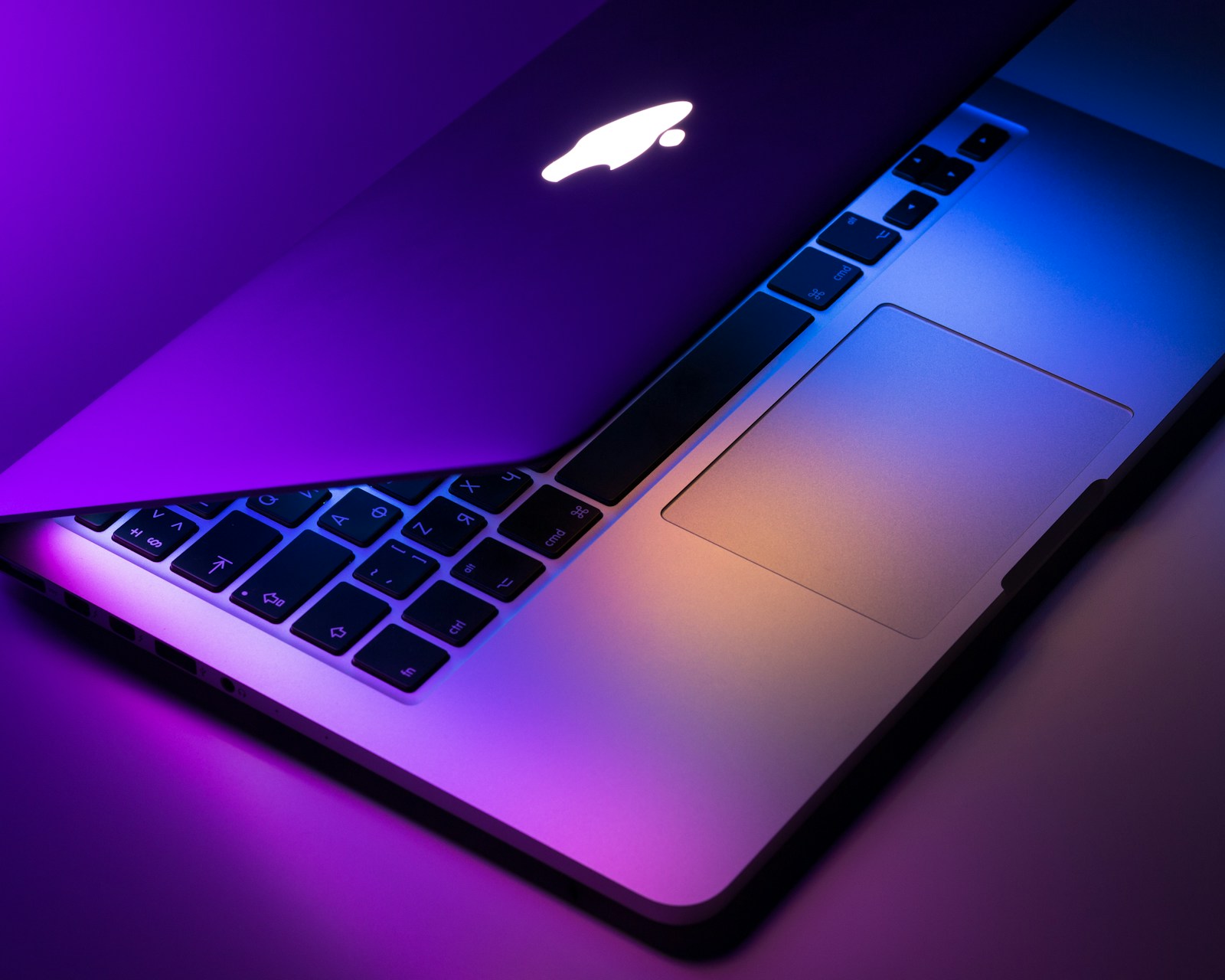
A laptop can be the center of a useful home office without disappearing into an expensive docking system. The best additions depend on how often it leaves the desk, how much screen space your work needs, and which parts of the current arrangement feel inconvenient.
Treat the setup as a sequence of decisions. First establish comfortable screen and input positions, then confirm connections, then decide whether a larger monitor earns its space. The recommendations here describe equipment types and specification checks; they are not claims that we have tested individual products.
Before you choose
- Separate screen height from typing position when using a raised laptop.
- Check the exact laptop model before choosing a dock or additional displays.
- Build around a repeatable arrival and departure routine.
Decide whether the laptop screen stays in use
Keeping the laptop open gives you a built-in camera, keyboard access, and a second display if you add a monitor later. It also uses more surface area. Decide which screen will hold most of your work, then put that screen directly in front of you. CCOHS recommends organizing multiple displays according to how frequently each is used.
Closed-lid operation can make a tidy external-monitor setup, but confirm the requirements for your particular computer. Power, operating-system settings, external input devices, and display support differ. Do not assume every laptop can run the same number of monitors simply because its ports have the same shape.
Make the first purchase solve placement
If you raise the laptop screen on a stand, plan for a separate keyboard and pointing device. Typing on a steeply elevated laptop trades one placement problem for another. Check whether the stand supports your laptop securely without covering ventilation openings, pressing buttons, or blocking the ports you use.
A folding stand suits a desk that must clear away. A heavier adjustable stand is easier to leave in place, although adjustable joints may move when you touch the screen. Consider the complete setup: keyboard width, mouse area, stand footprint, and space to open the laptop lid fully.
Buy connections from a list, not a port count
List each device you need to connect, including its connector and intended use. A keyboard, wired network, external drive, and high-resolution monitor place different demands on a hub. A row of sockets is only useful if the laptop, hub, cable, and operating system support the required functions together.
USB-C identifies a connector; it does not by itself promise video output, a particular data speed, or enough charging power for your laptop. Consult the laptop specifications and the dock compatibility notes. USB Power Delivery is a negotiated power system, so check the power available to the laptop after the dock reserves its own operating power.
Add an external display for a specific reason
A larger display earns its place when it makes a recurring task easier: editing a document alongside references, reading detailed diagrams, or keeping a timeline visible. Measure the desk depth before choosing screen size. Enlarging the text may be more helpful than buying a larger panel that ends up too close.
Apple explicitly advises checking video ports, supported display count, and cable requirements before connecting external screens. The same sequence is useful for Windows laptops, using the computer manufacturer documentation. Check refresh rate and resolution together, especially when a hub is involved. A listing that says 4K may refer to a mode that does not suit your work.
Keep leaving the desk simple
Choose a fixed place for the host cable so it does not fall behind the desk. Leave enough slack to connect it without twisting the laptop. If you travel often, a second compatible charger can remove a daily packing step, but it should meet the computer manufacturer requirements and have appropriate safety certification for your market.
Before unplugging, finish transfers to external storage and use the operating-system eject command where appropriate. Keep the travel charger and adapters in a dedicated pouch. After a week, count the connections you actually use. That record is a better reason to upgrade a hub than the appeal of a larger specification sheet.
Options for the way you work
These are product types to compare, not hands-on test winners. Each link opens a retailer search where you can check current specifications, availability, and seller terms.
Folding laptop stand and compact input devices
Best for: A laptop that moves between a dining table, home desk, and office.
The tradeoff: Three separate items take time to arrange, and light stands need a stability check.
Check current options (opens a new tab)Single-display USB-C hub with charging pass-through
Best for: A compatible laptop needing one monitor and a few everyday peripherals.
The tradeoff: Charging wattage and display mode may be lower than the headline specifications suggest.
Check current options (opens a new tab)USB-C monitor with a built-in hub
Best for: A permanent desk where one compatible screen can handle video, charging, and basic peripherals.
The tradeoff: Power delivery, available ports, and host compatibility still need individual verification.
Check current options (opens a new tab)A few common questions
Do I need a dock immediately?
No. Direct connections may cover your needs. A dock becomes worthwhile when it simplifies several recurring connections and its specifications match your computer.
Can I use any USB-C cable for the monitor?
No. A charging cable may not support the required video or data function. Use a cable recommended for the monitor and computer connection you are making.
Is a laptop stand enough on its own?
For raised-screen use, you normally also need a separate keyboard and mouse or trackpad so your hands can stay at a suitable working height.
Sources & further reading
Published references used to inform this guide. Product requirements can change; check the documentation for your exact equipment.
- CCOHS: Positioning the monitor
- CCOHS: Keyboard selection and use
- Apple: Connect external displays to a Mac
- USB-IF: USB Power Delivery
This article does not claim laboratory testing or personal ownership of the products discussed. Send a correction.